
Aqualogic / For internal teams
Teams backgrounds.
Approved Aqualogic backgrounds for Microsoft Teams video calls. Download any of the options below and add them to Teams from the meeting join screen or during a call.
How to add a Teams background
These instructions work the same way whether you’re on the Windows or Mac desktop app, Teams for the web, or the mobile app. You only need to upload each background once — Teams remembers it for future meetings.
Before you join a meeting
- Download your chosen background (below) and save it somewhere you can find it.
- Start or join a Teams meeting. On the “Choose your video and audio options” screen, click Background filters (or Video effects on some versions).
- Scroll to the bottom of the backgrounds panel and click + Add new.
- Select the downloaded image. It’ll appear in the list — click it to apply.
- Join the meeting as normal.
During a meeting
- Click More (the three-dot menu) in the meeting toolbar.
- Choose Video effects and settings (or Apply background effects).
- Click + Add new, pick the downloaded background, then click Apply.
On mobile (iOS or Android)
- Save the downloaded image to your phone’s photo library.
- In the Teams meeting, tap the three-dot menu at the bottom.
- Tap Background effects, then the + button to upload from your photos.
- Select the image and tap Done.
Tips
- Keep your camera roughly at eye level — the background sits best when your head is centred.
- Avoid strong backlighting (a window behind you). The blur along your edges gives it away.
- The Tŷ Dŵr Lounge / Meeting Room / Photographic options are best for external meetings. Coloured brand backgrounds are lower bandwidth and work for internal calls.
- If you don’t see the background listed after upload, close Teams and re-open — occasionally the list needs a refresh.
Downloads
All backgrounds are supplied at 1920×1080 px, sized for standard 16:9 video.
8 backgrounds
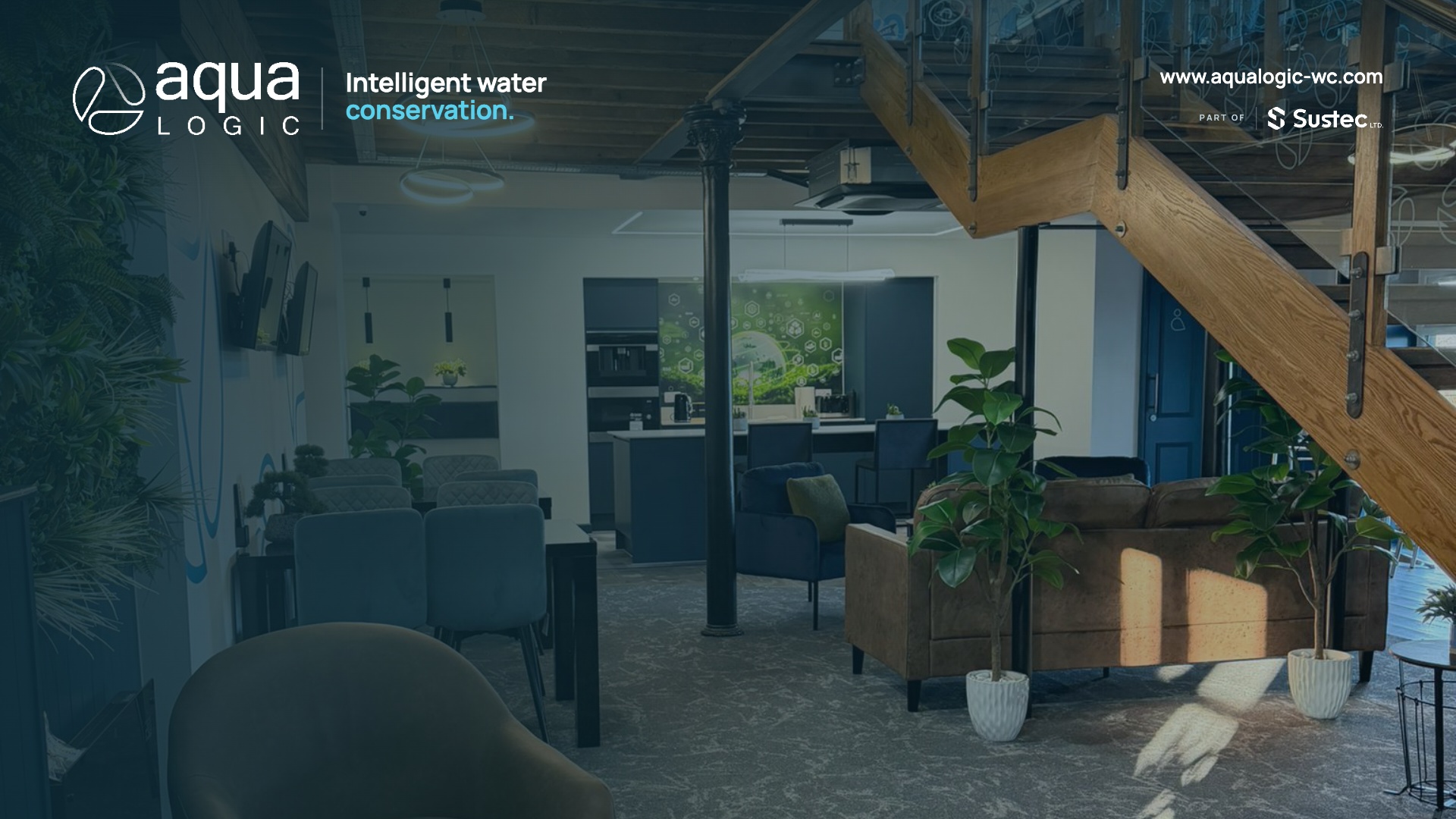
Tŷ Dŵr — Lounge
Aqualogic head office lounge. Warm, on-brand.
- Format
- jpg
- Size
- 458.1 KB
- Filename
- aqualogic-teams-ty-dwr-lounge.jpg
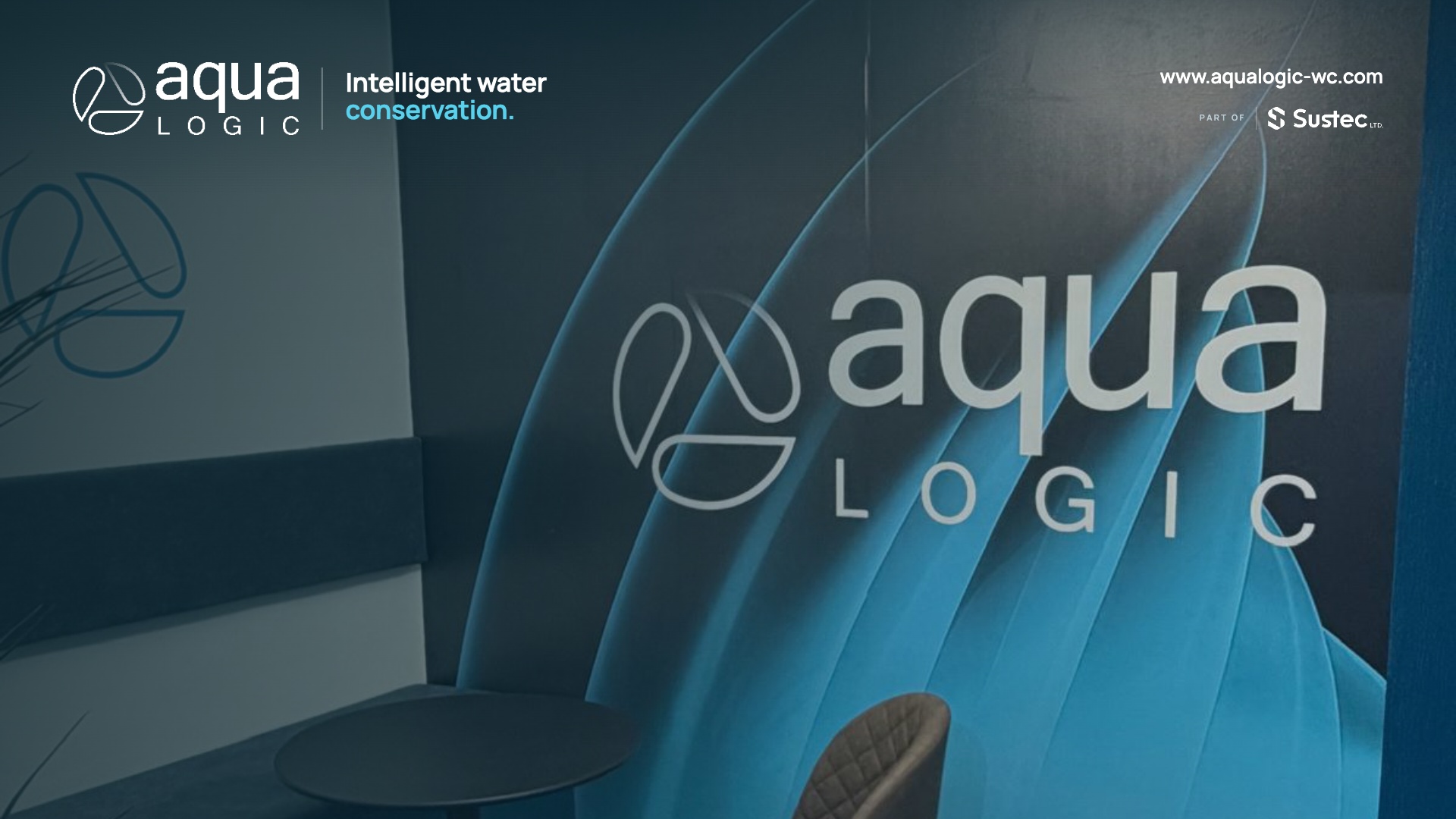
Tŷ Dŵr — Meeting room
Aqualogic head office meeting room. Confident, professional.
- Format
- jpg
- Size
- 295.9 KB
- Filename
- aqualogic-teams-ty-dwr-meeting-room.jpg
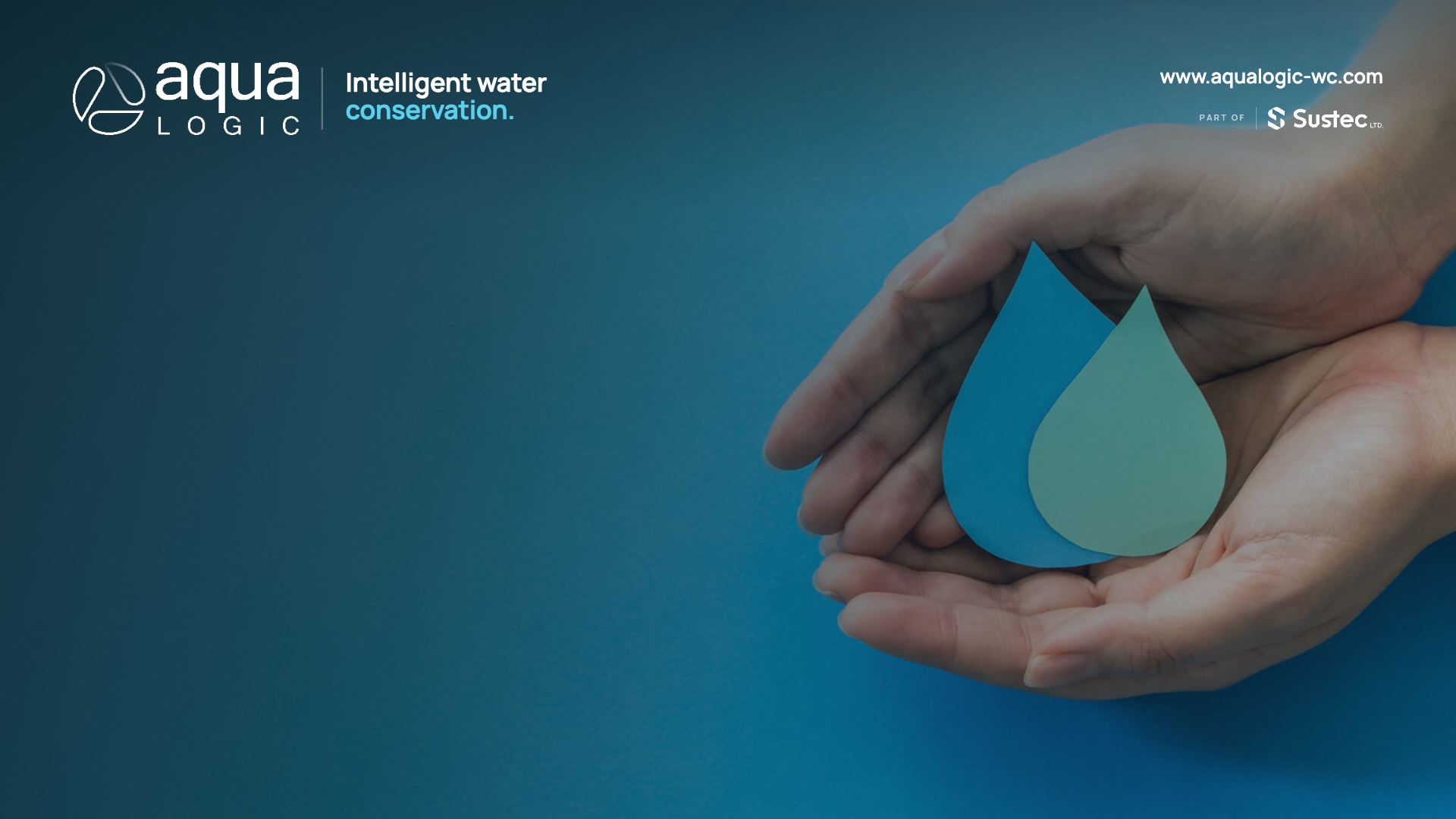
Photographic
Photographic scene. Best when you want a real-world backdrop.
- Format
- jpg
- Size
- 262.2 KB
- Filename
- aqualogic-teams-photo.jpg
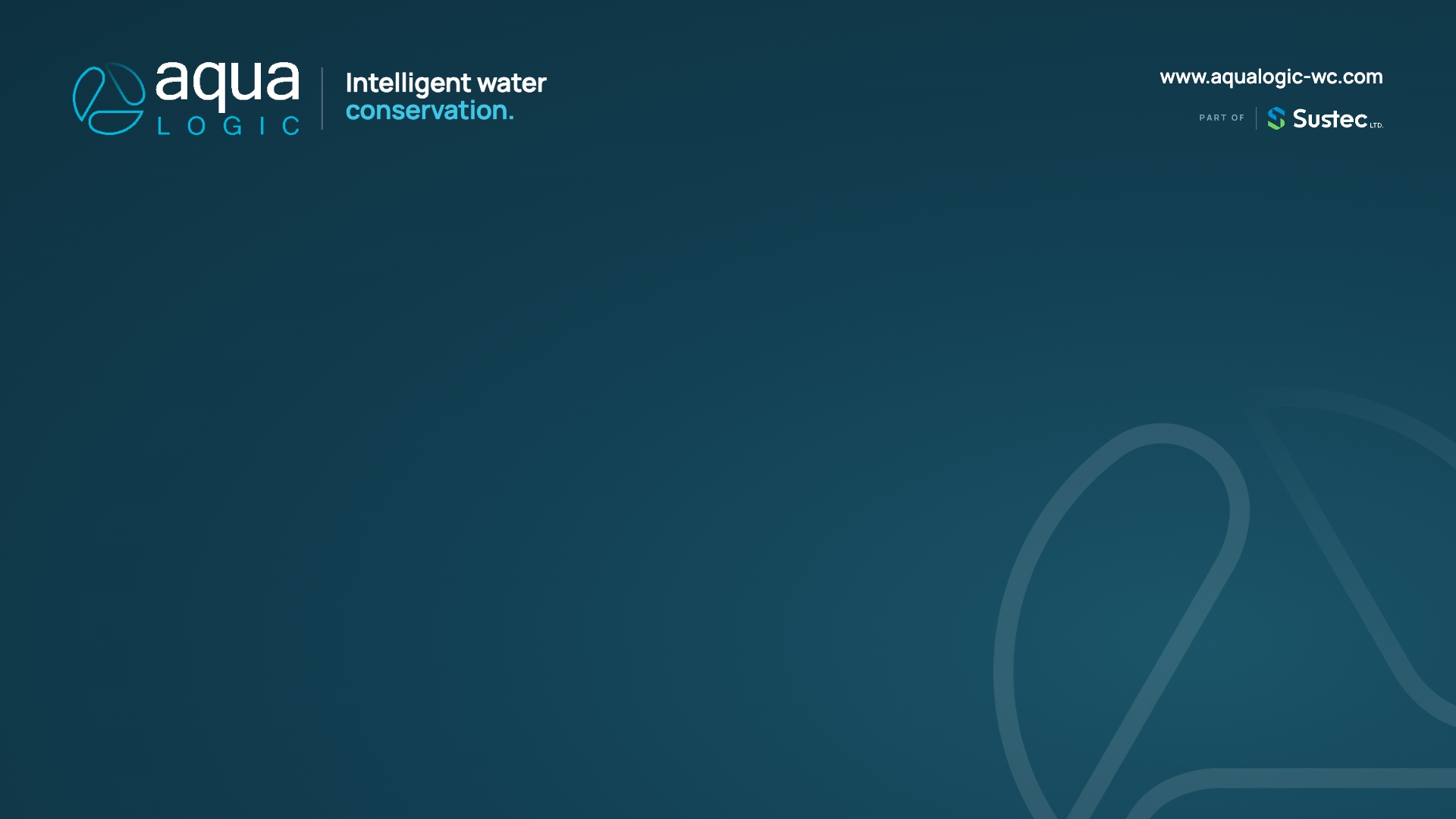
Deep
Deep blue brand background. Strong contrast; good for daytime lighting.
- Format
- jpg
- Size
- 109.8 KB
- Filename
- aqualogic-teams-deep.jpg
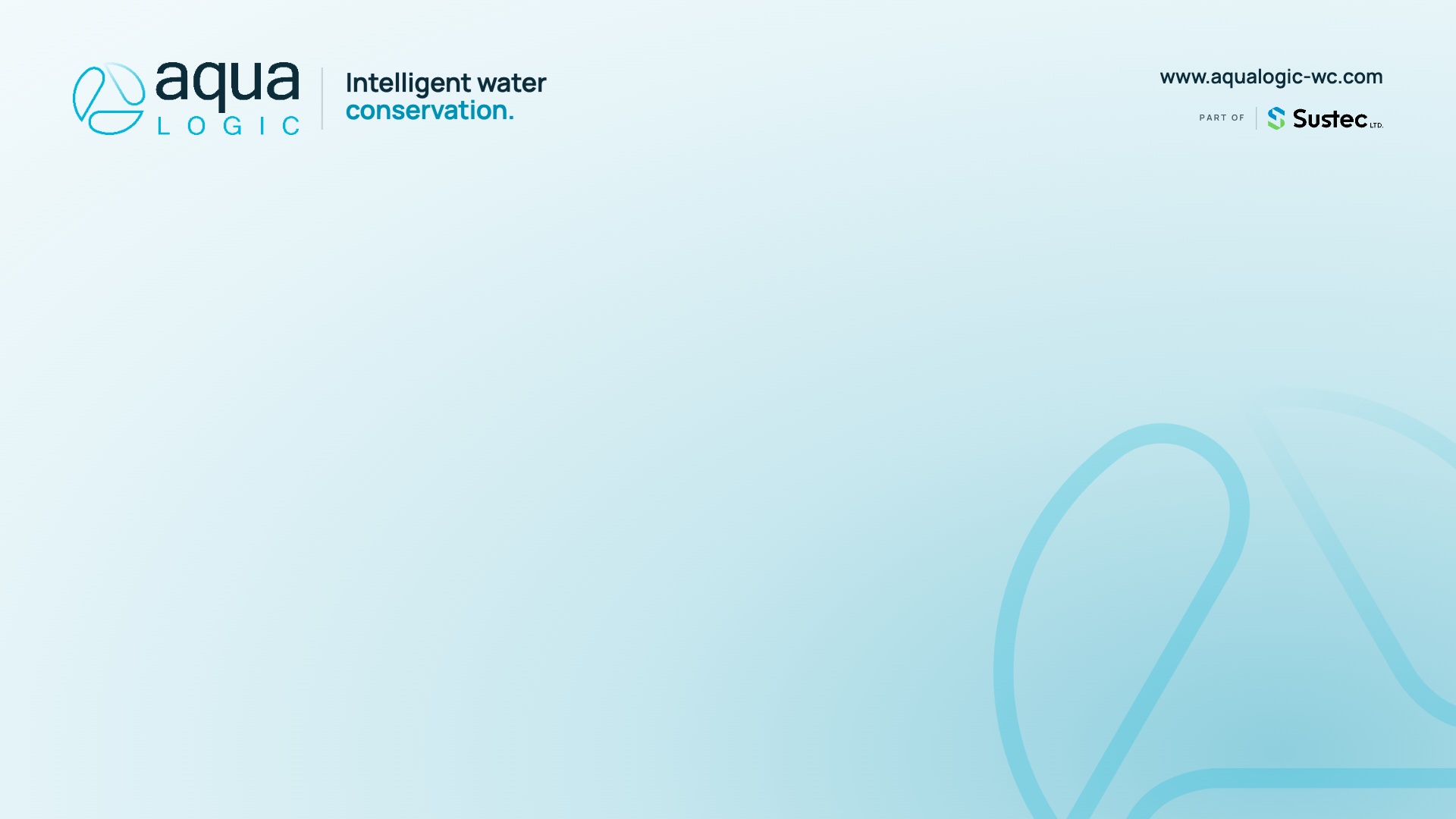
Sky
Sky blue brand background. Bright and confident.
- Format
- jpg
- Size
- 107.9 KB
- Filename
- aqualogic-teams-sky.jpg
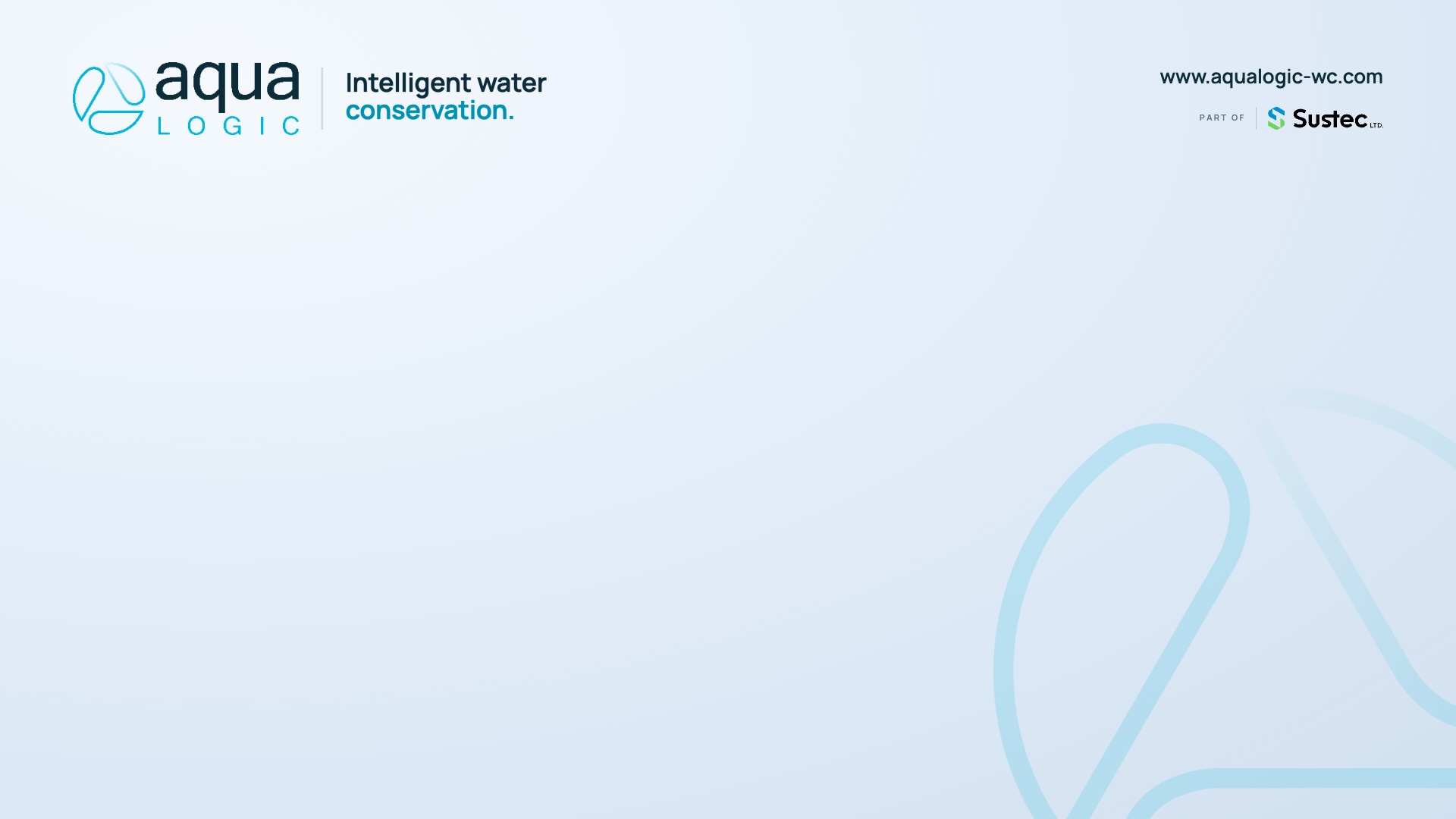
Pale blue
Softer blue variant. Calm, low-contrast.
- Format
- jpg
- Size
- 101.7 KB
- Filename
- aqualogic-teams-paleblue.jpg
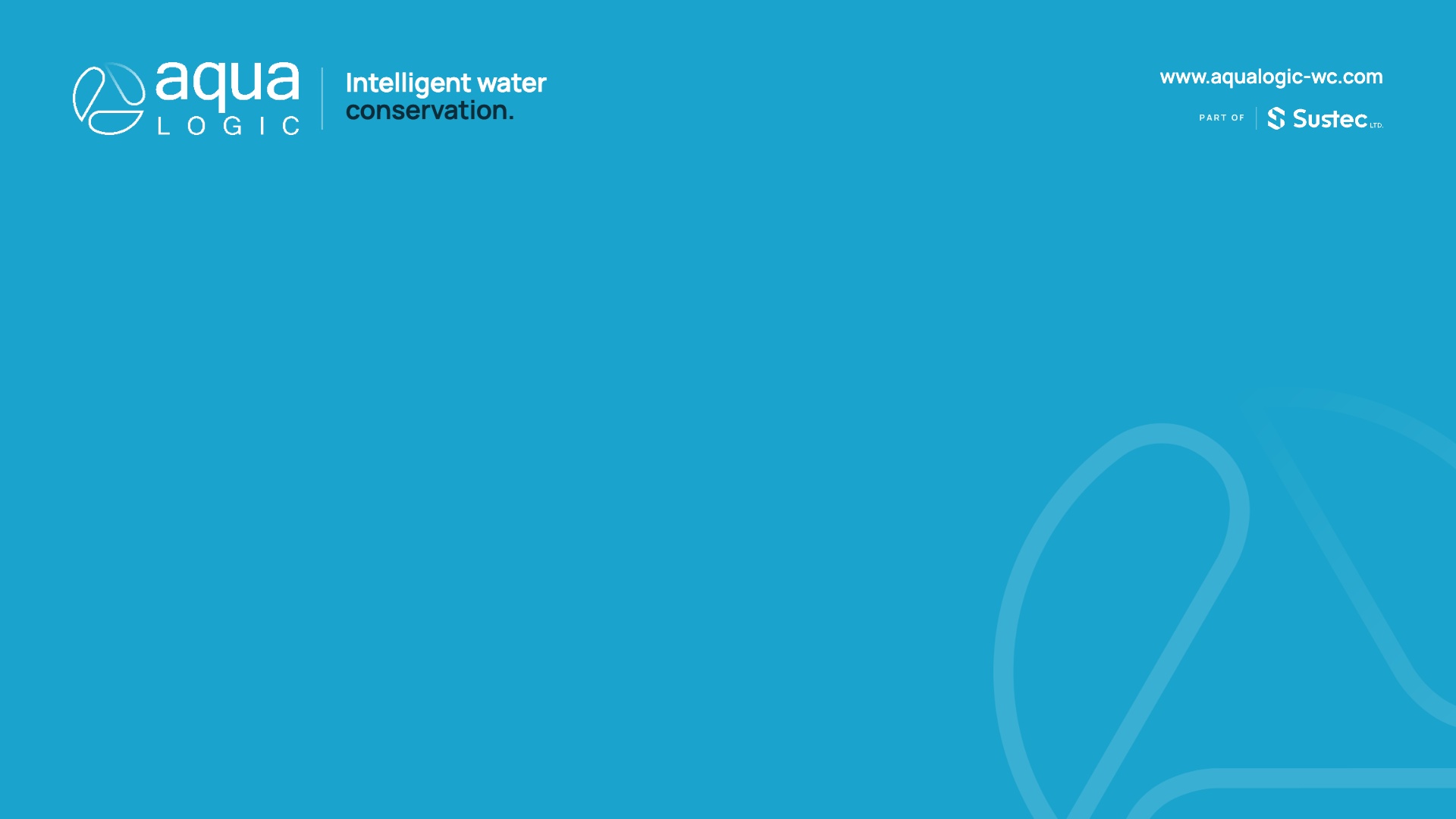
Light blue
Light blue variant. Bright, everyday choice.
- Format
- jpg
- Size
- 66.9 KB
- Filename
- aqualogic-teams-lightblue.jpg
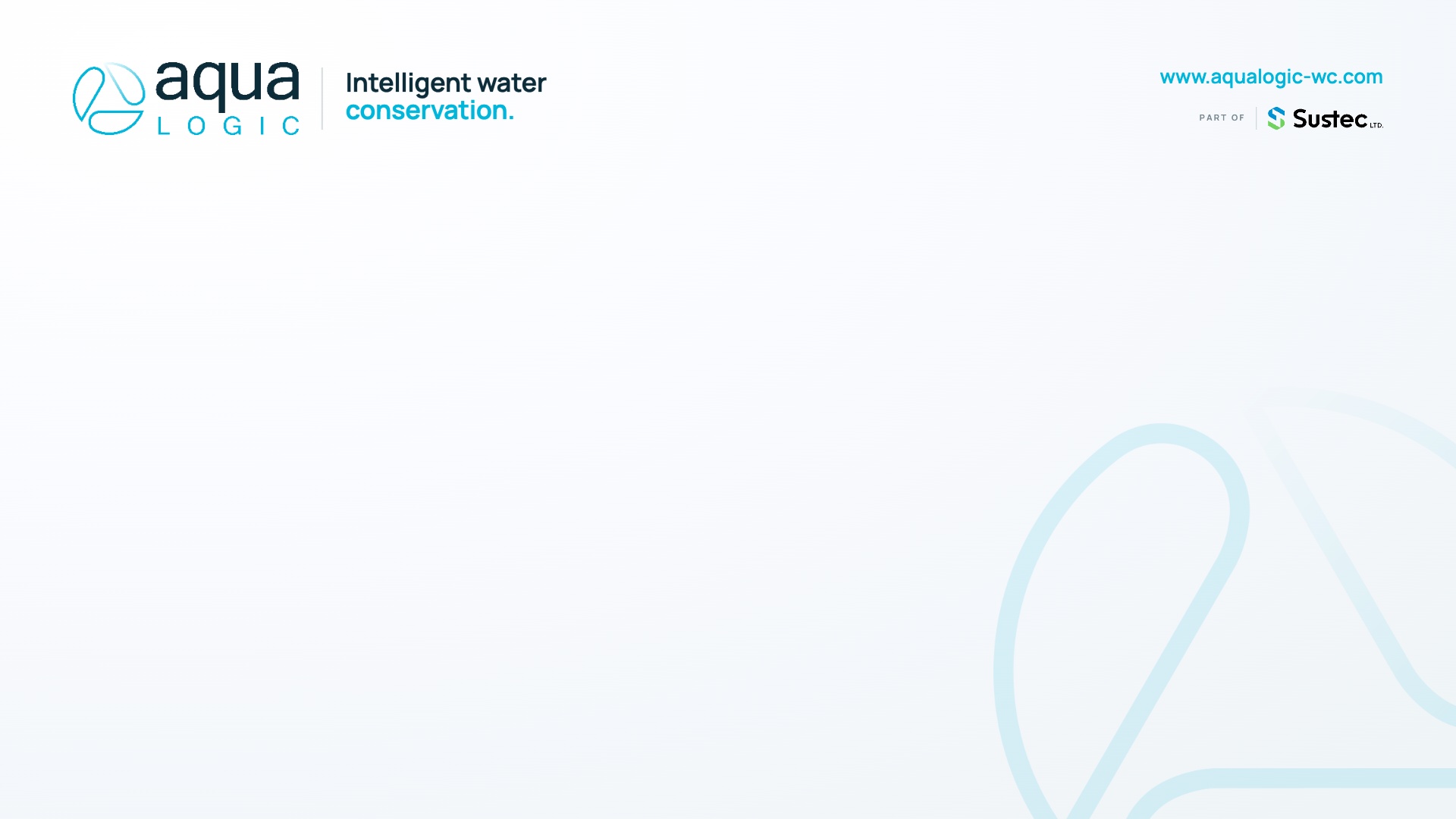
Paper
Neutral paper background. Warm, understated.
- Format
- jpg
- Size
- 100.4 KB
- Filename
- aqualogic-teams-paper.jpg